
Download Xoomer – Color Picker, Magnifier, Free Windows Utility
Overview
Xoomer is a lightweight yet powerful Windows utility that brings together two essential tools for designers, developers, and anyone who spends long hours in front of a screen: a precise color picker and a flexible magnifying glass. By simply moving the mouse cursor over any pixel, Xoomer instantly captures the RGB value and offers a one‑click conversion to hexadecimal format, making it a perfect companion for web designers who need to match colors across browsers and code editors. In addition to color identification, Xoomer doubles as a magnifier with adjustable zoom levels ranging from 2× up to 30×, providing crystal‑clear detail for users with visual impairments or for tasks that demand pixel‑perfect accuracy, such as UI inspection or digital artwork refinement.
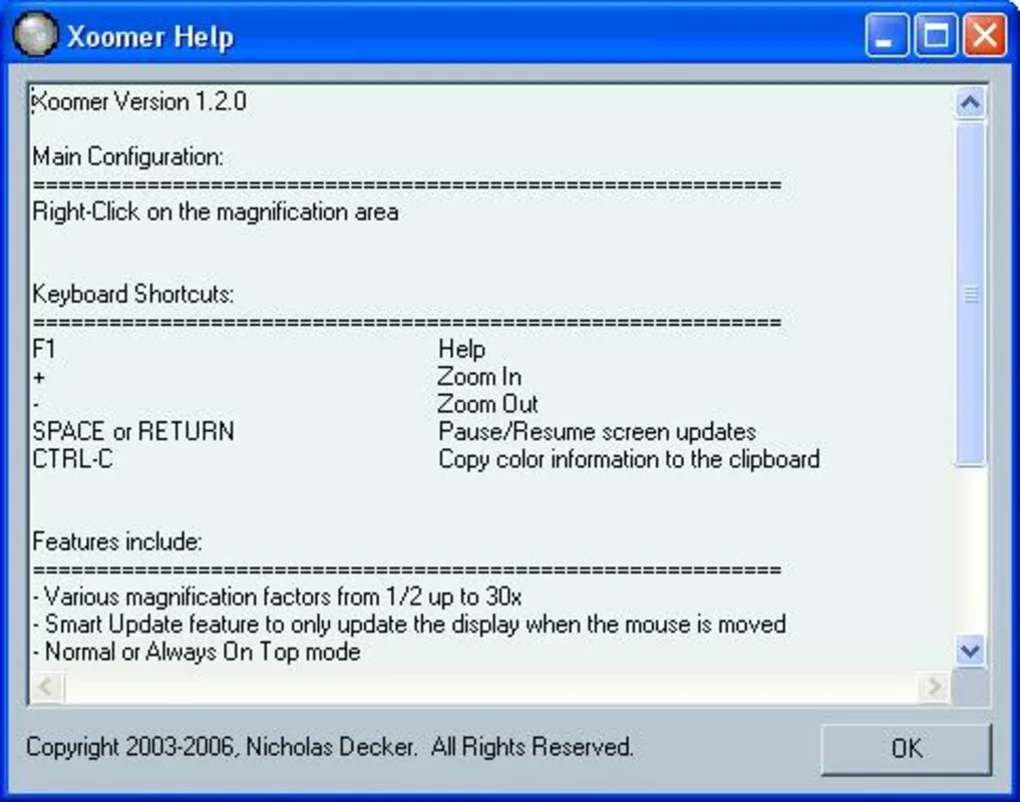
The interface is resizable, allowing you to fit the tool into any workspace without obstructing your main application. Keyboard shortcuts streamline common actions: Ctrl + ↑/↓ changes zoom, Ctrl + C copies the current color code, and Space pauses the live screen refresh, giving you full control without ever leaving your primary workflow. Xoomer is distributed as a free download, and its small footprint ensures that it runs smoothly on older hardware while still delivering a secure, up‑to‑date experience for modern Windows environments.
Core Features and Benefits
- Accurate Color Detection: Real‑time capture of RGB values with sub‑pixel precision.
- Hexadecimal Conversion: One‑click conversion of RGB to #HEX, ready for CSS or graphic software.
- Adjustable Magnification: Zoom levels from 2× to 30×, ideal for detailed inspection or accessibility.
- Resizable Window: Drag‑to‑resize panel to fit any screen layout without covering critical UI elements.
- Keyboard Shortcuts: Quick actions for zoom, copy, and pause without leaving the keyboard.
- Clipboard Integration: Instantly copy color codes to the clipboard for immediate pasting.
- Lightweight Design: Under 5 MB download size, minimal RAM usage, and no background services.
- Free & Secure: No ads, no hidden fees, and regular updates from the developer.
These features translate into real‑world productivity gains. Web developers can instantly verify that a button’s hover state matches the design specification, while graphic artists can zoom in to 30× to fine‑tune anti‑aliasing on vector paths. Accessibility advocates appreciate the magnifier, which eliminates the need for third‑party screen‑enlargement tools that often consume additional system resources. Because Xoomer operates entirely offline after installation, there’s no risk of transmitting screen data to external servers, which is a crucial privacy consideration for designers handling proprietary brand assets. Moreover, the straightforward UI reduces the learning curve—new users typically master the tool within minutes, freeing up valuable time for creative work rather than tool configuration.
Installation, Usage & Compatibility
Step‑by‑Step Installation
- Visit the official Xoomer download page and click the Download for Windows button.
- Save the
.exeinstaller to a convenient folder (e.g., Downloads). - Run the installer; Windows SmartScreen will prompt you to confirm the source—choose “Run anyway” if you trust the publisher.
- Follow the on‑screen wizard: accept the EULA, select the installation directory (default is
C:\Program Files\Xoomer), and click Install. - After the progress bar completes, click Finish. Xoomer will launch automatically, and an icon appears in the system tray for quick access.
How to Use Xoomer Effectively
Upon launch, the main window displays a small preview pane and the current color values. Move your mouse cursor anywhere on the screen; the preview updates instantly, showing the RGB triplet and the HEX code. To copy a code, press Ctrl + C or click the “Copy” button beside the value.
Adjust the magnification by scrolling the mouse wheel while holding Ctrl, or use Ctrl + ↑/↓ for finer control. If you need to pause the live update—for instance, when you want to capture a static view—press the Space bar. The resizable window can be dragged from any edge, letting you place it beside Photoshop, Visual Studio Code, or any other application.
System Requirements and Compatibility
Xoomer is built exclusively for the Windows platform. It supports Windows 10, Windows 11, and Windows 8.1 (64‑bit editions). Minimum specifications include a 1 GHz processor, 512 MB RAM, and 10 MB of free disk space. Because the application is native and does not rely on external runtimes, it runs smoothly on both modern high‑resolution displays and older monitors. Users with Windows 7 can still run Xoomer, though the developer recommends upgrading to a supported OS for optimal security and performance.
Pros, Cons, FAQ & Final Thoughts
Pros
- Free, no hidden costs or ads.
- High‑precision color picking with instant HEX conversion.
- Wide magnification range (2×‑30×) suitable for accessibility.
- Lightweight footprint; runs on low‑end hardware.
- Customizable keyboard shortcuts improve workflow speed.
Cons
- Available only for Windows; no native macOS, Linux, Android, or iOS versions.
- Lacks advanced palette management (e.g., saving favorite colors).
- Interface, while functional, is minimalistic and may feel dated to some users.
Frequently Asked Questions
Is Xoomer safe to download?
Yes. Xoomer is distributed from the developer’s official website, is free of malware, and does not collect personal data. Always verify the URL before downloading.
Can I use Xoomer on a Mac or Linux machine?
Currently Xoomer is a Windows‑only application. The developer has indicated interest in cross‑platform support, but no release dates have been announced.
How do I copy a color code to the clipboard?
Press Ctrl + C while the Xoomer window is active, or click the “Copy” button next to the displayed RGB/HEX value.
Does Xoomer support multiple monitors?
Yes. Xoomer captures colors and magnifies across all connected displays, allowing you to work seamlessly on a multi‑monitor setup.
Is there a way to save frequently used colors?
The current version does not include a palette manager, but you can copy colors to any external notes app or clipboard manager for later reference.
Conclusion & Call to Action
Overall, Xoomer delivers exactly what its tagline promises: a fast, free, and reliable color picker combined with a versatile magnifying glass. Its minimalistic design ensures that it never becomes a distraction, while the range of zoom levels and keyboard shortcuts empower power users to work faster. Although it lacks cross‑platform support and advanced palette features, the core functionality is solid enough to become a daily tool for web designers, UI developers, and anyone who needs precise screen magnification. If you’re looking for a no‑cost solution that won’t hog system resources, download Xoomer today and experience instant color identification and on‑the‑fly magnification directly from your Windows desktop.